How to Monitor Security Cameras Using Imou Life App?
In today’s digital age, home and business security has become a top priority for many. The Imou Life App is an innovative solution designed to make monitoring security cameras simple, effective, and accessible. Whether you’re at home, in the office, or on the move, this app allows you to manage your security system seamlessly from your smartphone or tablet. This guide will walk you through everything you need to know about monitoring security cameras using the Imou Life App, from installation to advanced features.
Why Use the Imou Life App for Monitoring Security Cameras?
The Imou Life App is not just a tool; it’s a complete solution for smart security. Here are some of its standout benefits:
Ease of Use:
The app offers an intuitive interface that’s easy to navigate, even for beginners.
Remote Access:
View live feeds or playback recorded footage from anywhere in the world.
Two-Way Communication:
Communicate with people at your door or alert intruders with the built-in microphone and speaker features.
AI-Powered Alerts:
Receive instant notifications for unusual activity, such as motion detection or unauthorized access.
Multi-Device Compatibility:
The app supports a wide range of security cameras, doorbells, and sensors from Imou.
Secure Data Storage:
Choose between local storage on an SD card or encrypted cloud storage for your video footage.
Steps to Download & Monitor Cameras Using Imou Life App
Step 1: Download and Install the App
For Android Users:
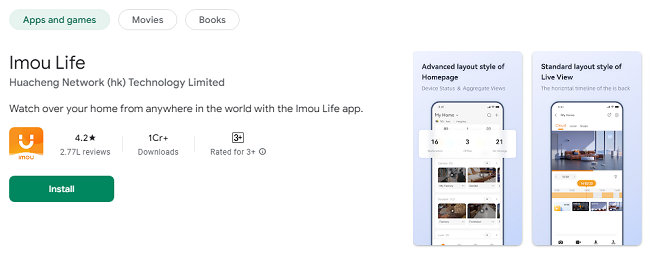
Open the Google Play Store, search for “Imou Life App,” and tap “Install.”
For iOS Users:
Open the App Store, search for “Imou Life App,” and tap “Get.”
System Requirements:
Ensure your device meets the minimum OS requirements (Android 5.0 or iOS 10.0 and above).
Step 2: Create an Account
Open the app and tap “Sign Up.”
Enter your email address or phone number and create a secure password.
Verify your account through the email or SMS code sent by Imou.
Step 3: Connect Your Camera
Plug in your Imou camera and ensure it is powered on.
Tap the “Add Device” button in the app.
Follow the on-screen instructions to scan the QR code on your camera.
Connect the camera to your Wi-Fi network.
Monitoring Security Cameras with Imou Life App
Once your camera is connected, you can begin monitoring. Here’s how:
1. Live View
Open the app and select the camera you wish to view.
Watch real-time video streams with options to zoom in, pan, or tilt (if your camera supports these features).
2. Playback Recorded Footage
Tap on the “Playback” option.
Select a specific date and time to view recorded footage.
Use the timeline slider to quickly navigate through the recording.
3. Two-Way Talk
Tap the microphone icon during a live view session.
Speak into your phone to communicate with someone near the camera.
4. Switch Between Cameras
If you have multiple cameras, swipe left or right to switch between feeds.
Alternatively, view all cameras at once using the multi-view mode.
Advanced Features for Enhanced Monitoring
1. AI Human Detection
The app uses AI technology to distinguish between human activity and other motions (e.g., animals or tree branches).
Activate this feature in the app’s settings to reduce false alarms.
2. Customizable Alerts
Set alert schedules based on your routine.
Adjust sensitivity levels to detect specific types of motion.
3. Smart Zones
Define activity zones within the camera’s field of view.
Receive alerts only for movement within these zones.
4. Cloud Storage Integration
Subscribe to Imou’s cloud storage plans for easy access to your video footage anytime, even if your device is lost or damaged.
5. Built-In Siren and Spotlight
Activate the siren or spotlight feature remotely to scare off intruders.
Troubleshooting Common Issues
Issue 1: Camera Not Connecting
Ensure your Wi-Fi network is stable and supports 2.4GHz (most Imou cameras do not work with 5GHz).
Restart your camera and router.
Re-scan the QR code and try again.
Issue 2: Video Feed is Lagging
Check your internet speed and reduce the video resolution if necessary.
Close other apps running in the background to free up resources.
Issue 3: No Motion Alerts
Verify that motion detection is enabled in the app settings.
Adjust the sensitivity level or redefine the activity zones.
Tips for Effective Monitoring
Position Cameras Strategically:
Place cameras at entry points, hallways, and other high-traffic areas.
Regularly Update the App:
Ensure you’re using the latest version of Imou Life to benefit from new features and security improvements.
Optimize Lighting Conditions:
Ensure adequate lighting for clear footage or use cameras with night vision capabilities.
Enable Notifications:
Turn on push notifications to receive instant updates on your phone.
Secure Your Account:
Use a strong password and enable two-factor authentication for added security.
Frequently Asked Questions (FAQs)
Q1: Can I monitor multiple cameras simultaneously?
Yes, the Imou Life App allows you to view multiple camera feeds at once using the multi-view mode.
Q2: Is the Imou Life App free to use?
The app is free to download and use, but some features (e.g., cloud storage) may require a subscription.
Q3: Can I share access with family members?
Yes, you can share device access with family or friends by adding them as users in the app settings.
Q4: Does the app work offline?
While live monitoring requires an internet connection, you can access locally stored footage offline.
Q5: Is my video data secure?
Yes, the Imou Life App uses encrypted transmission to ensure the security and privacy of your data.
Conclusion
The Imou Life App is a powerful and user-friendly tool for monitoring security cameras, offering features like live viewing, AI alerts, two-way communication, and more. By following the steps and tips outlined in this guide, you can optimize your home or business security and stay connected to what matters most. Whether you’re tech-savvy or a beginner, the Imou Life App simplifies the complexities of modern security systems, putting peace of mind at your fingertips.
Updates